Timesheet
The Huddle timesheet is used by Aarsleff office employees to allocate time spent to projects in order to allocate costs correctly. As such, it is vital that the timesheets are submitted accurately.
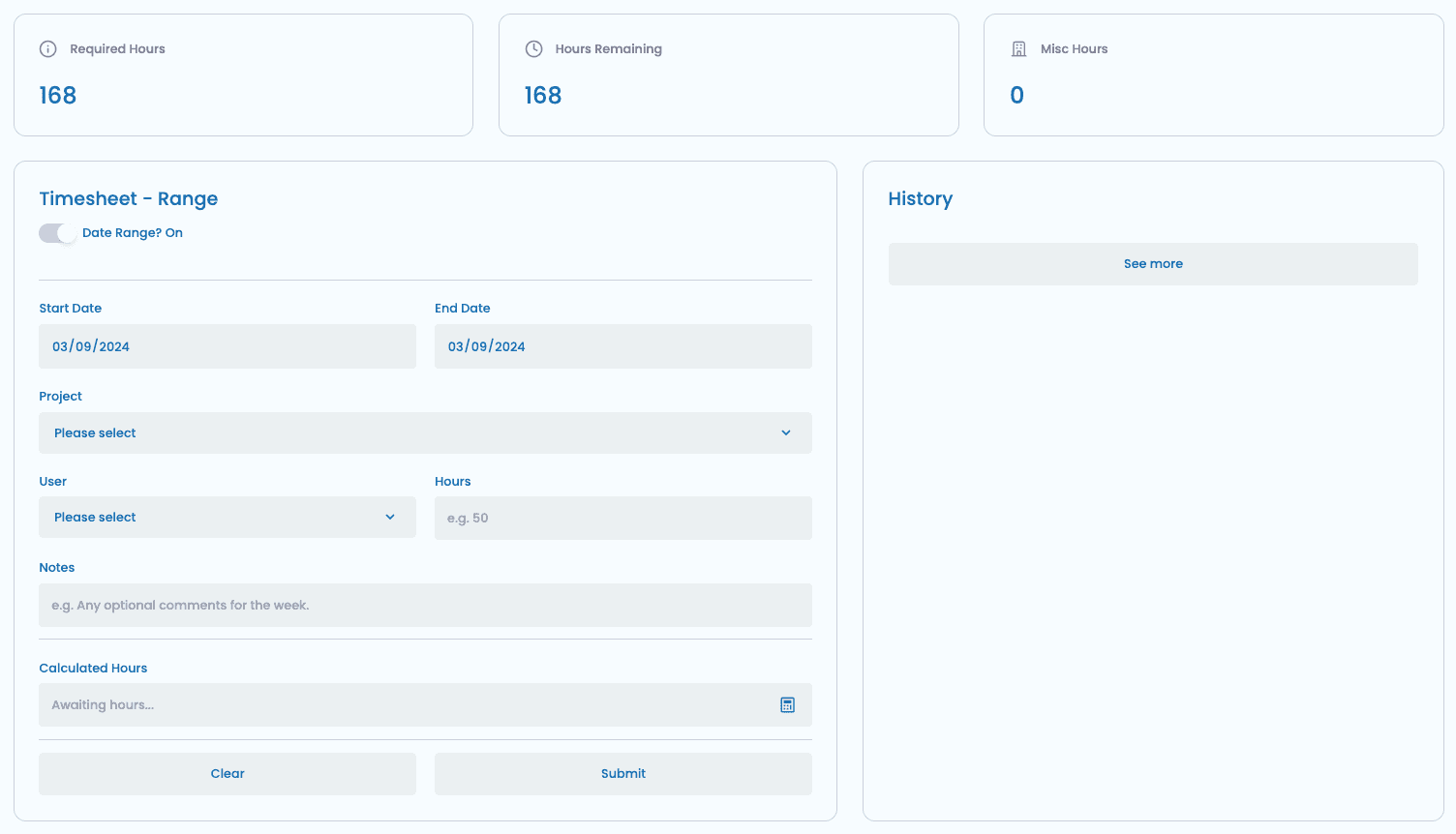
The timesheet form can be seen below:
Info Cards
The top three info cards are indicators to show:
- How many hours are required for the month.
- Hours submitted for the month.
- Hours submitted for the month that are misc.
These are generated automatically and assumed 8 hours a day, 5 days a week for the month.
Form
The form has two modes - date range and single date. By default, the form is in date range mode. This can be toggled by clicking the Date Range? slider.
Automatic Fields
The Calculated Hours field is automatically generated and does not require any user input. This looks at what you're submitting, what has already been submitted and removes any hours that would go over a maximum of 8 per day.
Date Range Mode
The Date Range mode allows you to select a start date and end date. You can then allocate total hours spent to a project, i.e. 40 hours over 5 days. This will then average out per day.
An example is below where I have allocated 40 hours over 5 days.:
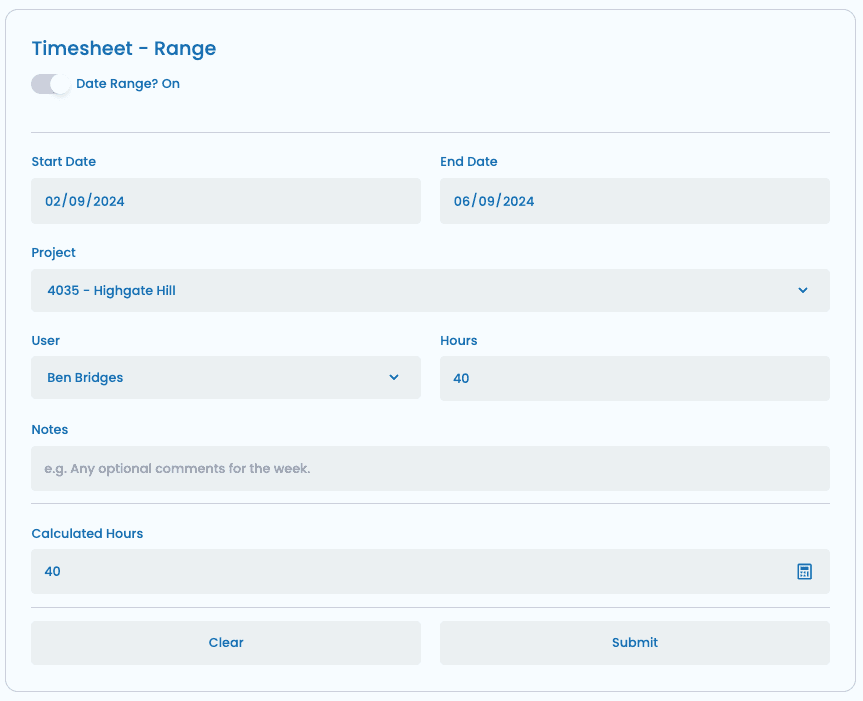
If you try to allocate more hours than possible, the Calculated Hours field will work out the maximum you can submit and automatically top up the days accordingly!.
This is very useful if you allocate lots of single days to projects and want to top up at the end of the month with your departments 30000 code as you can select the first and late date of the month and put in the outstanding hours!
Single Date Mode
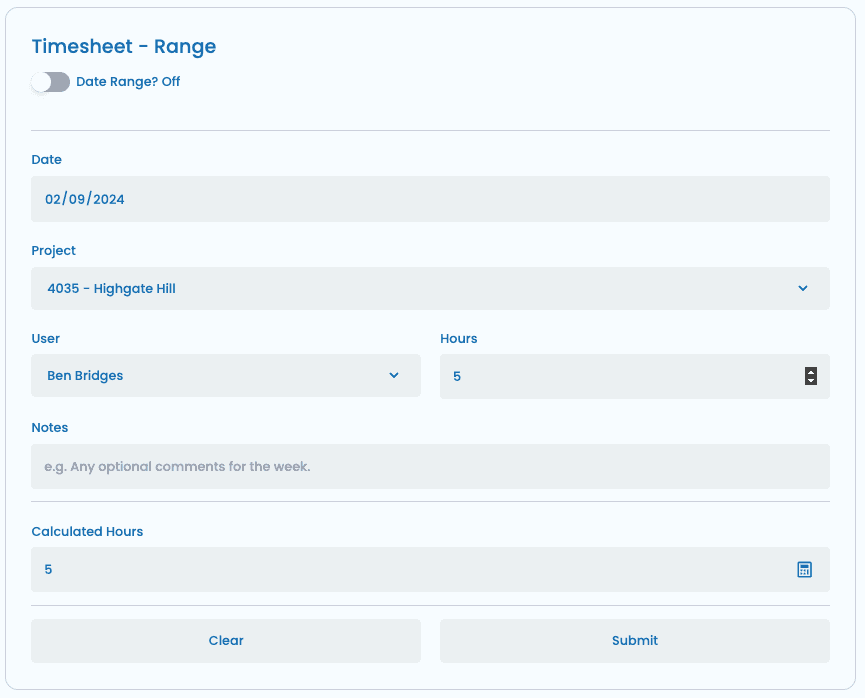
The Single Date mode allows you to select a single date and allocate hours to a project. This is useful if you have a single day that you want to allocate to a project.
An example is below where I have allocated 4 hours to a project on a single day:
Projects
The projects are populated by NAV and depending on your department you may have CAN's present as well for pre-NAV work.
History
The history is a feedback panel that shows you a summary of what has been submitted. In the case where you use the date range, you might see this split up into more than 1 entry.
Chart
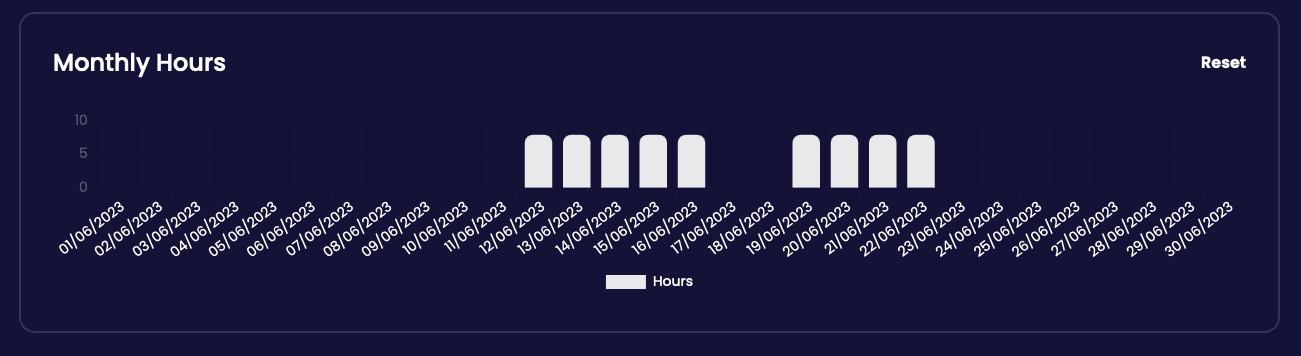
The chart is a visual representation of what you have submitted. This is useful to see how much you have submitted and how much you have left to submit. This updates immediately after submitting.